← WebP Viewer SAMURAI top page
When an iPhone won’t open WebM
On the developer’s iPhone, WebM videos did not show up when added to Photos, and could not be opened after saving them to Files. This may differ by iPhone model and iOS version.
Straight into folders
- Keep WebM, MP4 and MOV videos as videos, in folders (up to 200 MB each).
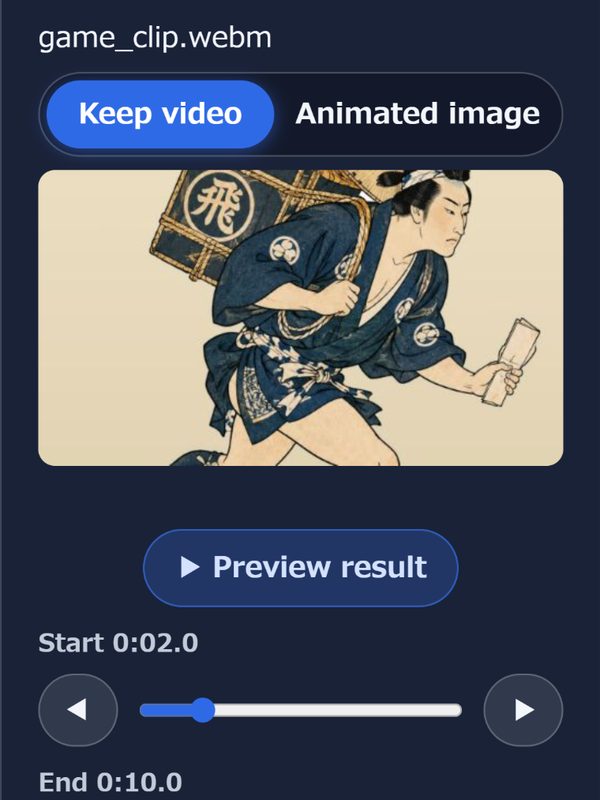
- Choose a start and an end, and that part loops in full screen, with sound (tap 🔊 to mute).
- Change the range later from “Info” in full screen.
- Tap once while playing to pause, step one frame at a time, or change the speed (0.5× or 2×).
- MP4 and MOV can also be added to Photos (“Save” → “Save to Photos”).
How to use it
- Get WebP Viewer SAMURAI on the App Store (free).
- Open a folder, tap “+ Import” → “Choose files or photos”, and pick your videos. You can also use the Share button in Photos or Files.
- Choose “Keep video”, then set where it starts and ends.
- Tap the video to watch that part loop in full screen.
What’s free?
Keeping videos and looping them is free, with a range of up to 60 seconds per video. The Full Version, a one-time purchase, removes the limit. It is not a subscription.
FAQ
- Can I turn a video into an animated image?
- Choose “Animated image” when importing. The free version allows 12 fps, 720 px on the long side, and 20 seconds; the Full Version allows 24 or 30 fps, 1080 px, and 30 or 60 seconds.
- Are my videos uploaded?
- No. Videos are stored only on your device and never sent to our server. No account is needed.
- What else can it do?
- Play animated WebP as it moves, sort images into folders, save as GIF, and more. See the top page.
Try it free with your own clips.


Free to startiPhone, iPad and Android