← WebP Viewer SAMURAI top page
Saving as JPEG or PNG and converting to WebP are available from version 1.7.
When WebP won’t work
WebP is a common image format on the web, but some apps and services don’t accept it. JPEG or PNG works instead.
Just choose when you save
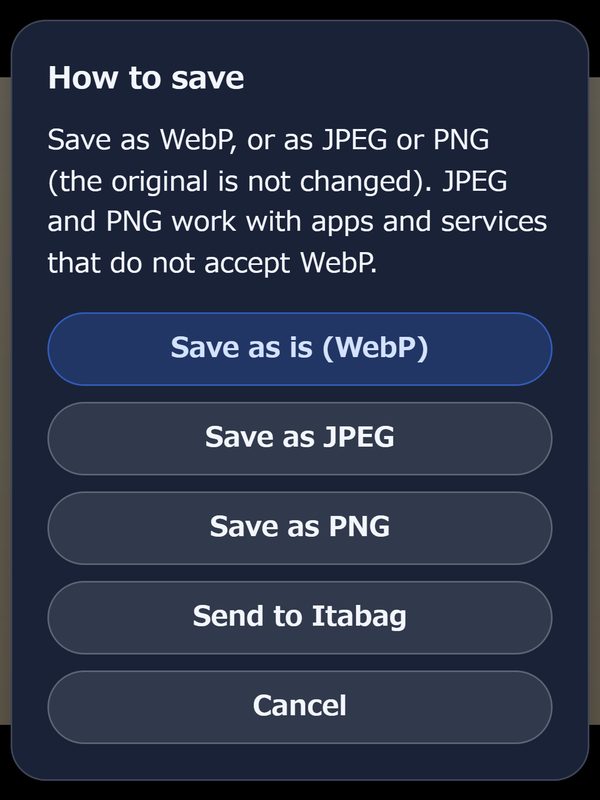
- From “Save” in full screen, choose “Save as JPEG” or “Save as PNG”. The original is not changed.
- Select several images and tap “Save” to convert them together.
- For images with transparent areas, PNG is recommended (JPEG turns them white).
- An animated WebP becomes a single still frame.
How to use it
- Get WebP Viewer SAMURAI on the App Store (free).
- Add your WebP images with the Share button in Photos or Files, or with “+ Import” in the app.
- Tap an image for full screen, then “Save” → “Save as JPEG” or “Save as PNG”.
- When it’s ready, choose “Save to Photos” or “Send elsewhere (Files, etc.)”.
The other way: make images lighter as WebP
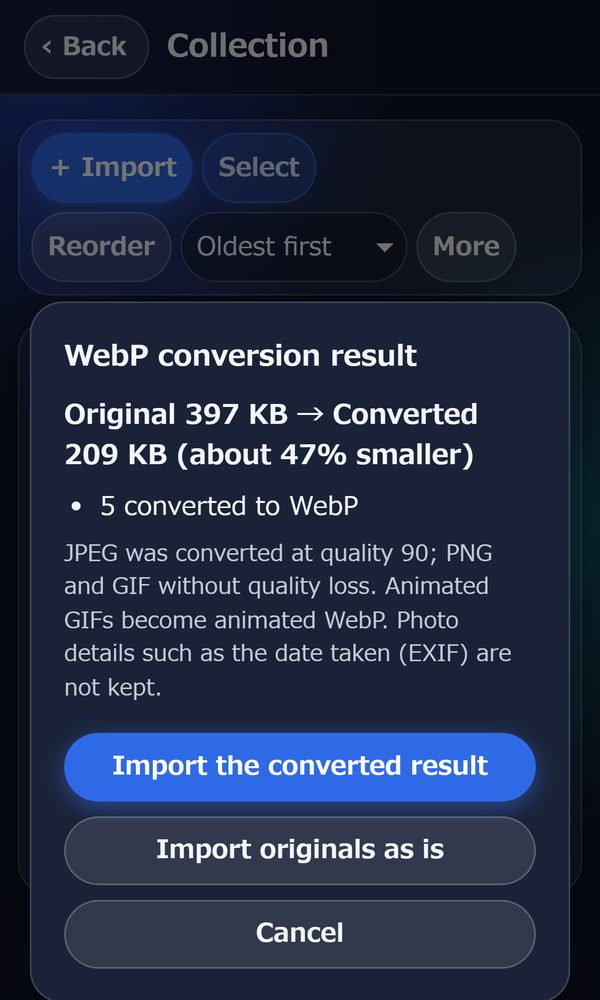
Convert JPEG, PNG and GIF to WebP as you import; an animated GIF becomes an animated WebP. Compare the sizes before and after, then choose. Images already in the app can be converted too: one, a folder, or all.
FAQ
- Does it cost anything?
- Saving as JPEG or PNG and converting to WebP are free (images in folders the free version cannot open are not converted). The Full Version, a one-time purchase, adds things like unlimited folders.
- Are my images uploaded?
- No. Conversion runs on your device, and images are never sent to our server.
- Are photo details kept?
- Converting to WebP does not keep details such as the date taken (EXIF).
- What else can it do?
- Play animated WebP as it moves, sort images into folders, save as GIF, and more. See the top page.
Try it free and convert your images.


Free to startiPhone, iPad and Android